
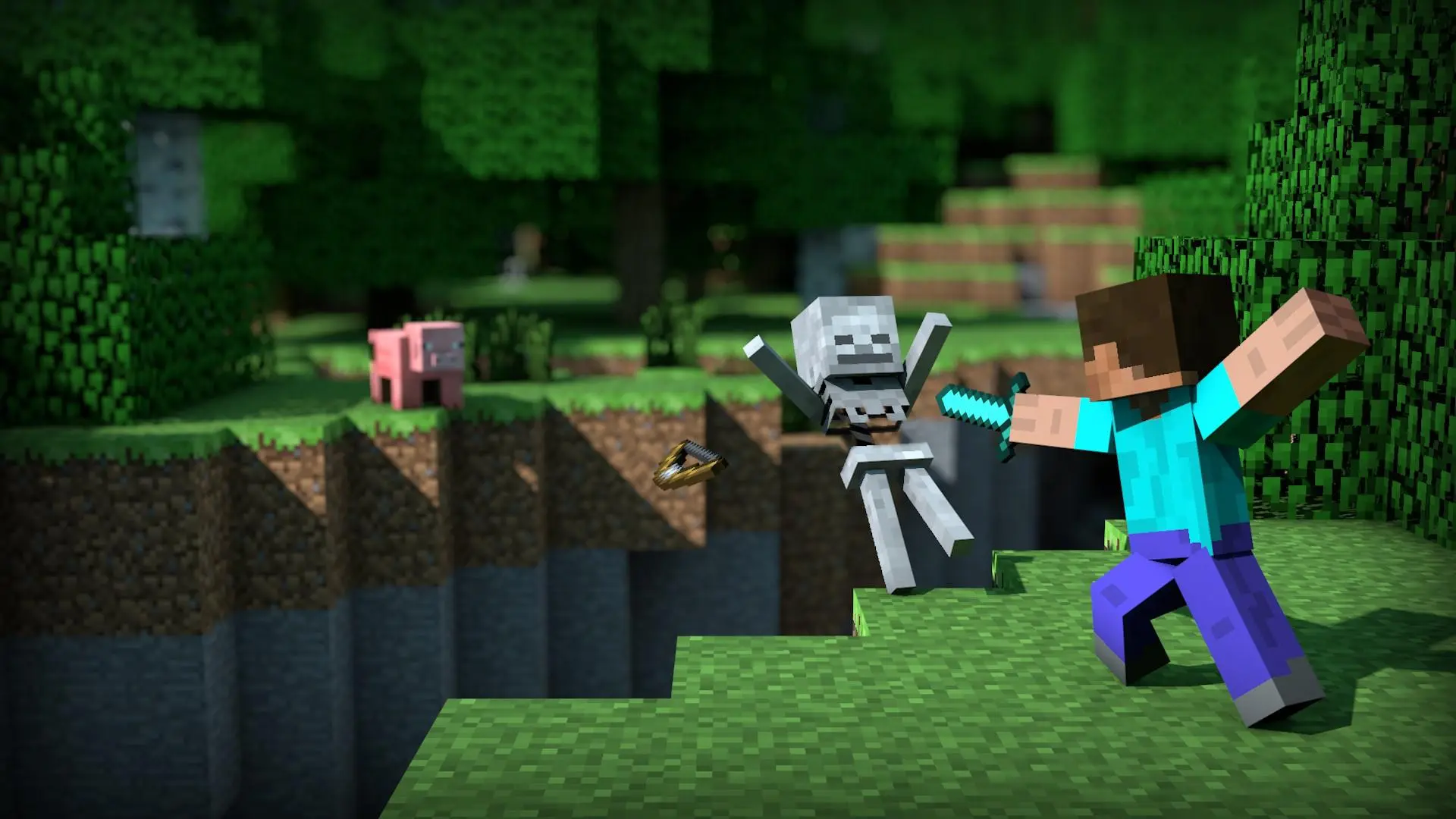
How to Play Minecraft Unblocked on Your Browser
The good news is that you don’t need to install anything, bypass any serious security, or do anything sketchy to play Minecraft in your browser.
There are legitimate ways to make this happen, and this guide walks you through exactly how.
Why Minecraft Gets Blocked in the First Place?
Most school and workplace networks use content filters that block gaming sites as a category. It’s not personal.
Minecraft’s official launcher requires a download and a paid account anyway, so it was never going to work on a restricted network regardless.
The solution people have landed on is browser-based versions of Minecraft, which sidestep the whole issue because they run entirely in your tab.
The Main Option: Eaglercraft
If you’ve poked around looking for unblocked Minecraft options, you’ve probably already seen Eaglercraft mentioned.
It’s the most well-known browser-based Minecraft client out there, and for good reason.
Eaglercraft is a fan-made project that reverse-engineered older versions of Minecraft (mainly 1.5.2 and 1.8) and converted them to run in the browser using JavaScript. It’s genuinely impressive work.
You get actual Minecraft gameplay, not some knockoff. Mining, crafting, mobs, survival mode, the full thing.
And because it runs in the browser, there’s nothing to install and nothing to get flagged by a network filter checking for executable downloads.
To play it, you just need to find a working Eaglercraft server. The landscape shifts around a bit since specific URLs come and go, but searching for these servers will provide current working links. Once you’re in, you can join multiplayer servers or mess around in single player.
A few things to know going in: it’s older Minecraft, so don’t expect 1.20 features. No horses, no elytra, no fancy modern biomes.
But for building and survival fundamentals, it does the job. The controls and interface are close enough to the real thing that you won’t need to relearn anything.
Other Browser-Based Minecraft Options
Eaglercraft gets most of the attention, but it’s not the only route.
Classic Minecraft is actually available directly from Minecraft.net. It’s the original 2009 browser version from before the game even hit beta, and it runs free with no account required. It’s purely creative mode with a limited block selection, but it’s officially sanctioned and will never get you in trouble for playing it. Great if you just want to build something without any survival pressure.
Minecraft: Education Edition might already be available to you if you’re at a school that licenses it. It’s a full-featured version of the game designed for classroom environments, which means it’s often whitelisted by the same filters that block everything else. Worth checking with your IT department or teacher before looking for workarounds.
Tips for Playing on Restricted Networks
A couple of practical things that help. First, browser-based versions of Minecraft tend to run better on Chrome and Firefox than on other browsers, so if you have a choice, use one of those.
Second, if a specific Eaglercraft link isn’t loading, it might just be that the URL was recently blocked or the server went down. Try a different mirror rather than assuming the whole approach doesn’t work.
If you’re playing at school, keep the volume down or use headphones. Obvious advice, but worth saying.
The Honest Take
Playing games on a network that’s set up for work or school is a judgment call that depends on your situation.
During a free period or lunch break, browser games are pretty standard. During actual class time or while you’re on the clock? Probably not the move. That part’s on you.
But if you’ve got the time and the right moment, Eaglercraft and the classic browser version are genuinely solid ways to get your Minecraft fix without downloading anything or spending money.
The setup takes about thirty seconds. Find a working link, open it, start building. That’s really all there is to it.